
How to split a 3D model into pieces for Bambu Lab printers
Bambu Lab printers are fast and reliable, but a 256 mm bed still means large models have to be printed in pieces. Here's how big each piece can be, and two ways to split a model.
How big can each piece be?
These are the build volumes Bambu Lab lists. Plan pieces a little smaller than the bed, about 5 to 10 mm per side, to leave room for a brim and for pegs on the cut faces.
| Printer | Build volume (W × D × H) |
|---|---|
| A1 mini | 180 × 180 × 180 mm |
| A1 | 256 × 256 × 256 mm |
| P1P / P1S | 256 × 256 × 256 mm |
| X1 Carbon | 256 × 256 × 256 mm |
| H2D | 325 × 320 × 325 mm with one nozzle (300 × 320 × 325 mm using both) |
The H2D is sometimes listed as 350 mm wide, but that is the span of both nozzles together; a single print can only use 325 mm. Check the exact numbers for your setup in Bambu Studio's printer settings, since some printers keep small areas of the bed clear.
Option 1: the Cut tool in Bambu Studio
Bambu Studio has a built-in Cut tool. It suits models that need only a few cuts.
- Select the model on the plate and open the Cut tool from the toolbar.
- Drag the cutting plane to where you want the cut, and rotate it if needed.
- Optionally add connectors on the cut face, so the two halves line up when you join them.
- Perform the cut, then repeat on each part that is still too big.
OrcaSlicer has the same tool. The downside is scale: every cut is placed by hand. A model that needs more than a handful of cuts takes a long time, and it's easy to leave thin slivers that are hard to print and glue.
Option 2: split it automatically
For anything big, Scale & Cut 3D does the whole job in one pass:
- Scales the model to the size you want, in mm, inches or feet.
- Cuts it into pieces that fit the Bambu printers you select, even a mix like an A1 and an A1 mini.
- Moves cuts to avoid thin slivers, and merges tiny pieces into their neighbours.
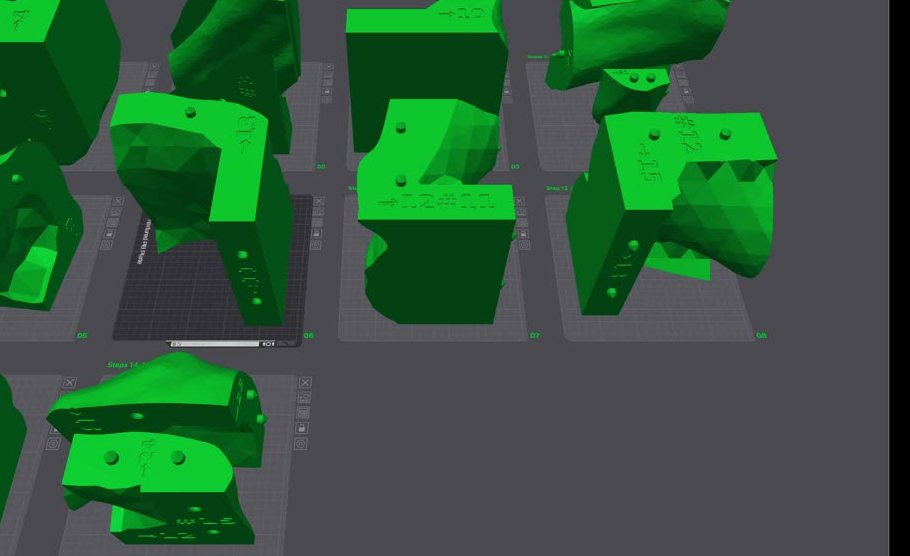
- Adds alignment pegs on every seam and engraves each face with the number of the piece that goes there.
- Lays the pieces flat and arranges them on plates, saved as Bambu Studio project files in build order.
Before you print: generated projects use generic settings. Open the first plate, confirm the printer, nozzle, filament and plate type, slice it, and check the preview before printing the rest.
Let the app do the cutting
Scale & Cut 3D scales your model, cuts it into pieces that fit your printer, adds alignment pegs and part numbers, and lays everything out on plates for Bambu Studio and OrcaSlicer. One purchase covers Windows and Mac.
See pricingQuestions
Does Bambu Studio have a cut tool?
Yes. Bambu Studio's Cut tool splits a model along a plane and can add connectors to the cut faces. It works well for a few cuts; large models with many pieces are faster with an automatic tool.
Can I mix an A1 mini with a larger Bambu printer?
Yes. Plan the cuts around the larger printer, then print the pieces that fit on the A1 mini there. Scale & Cut 3D routes each piece to the smallest selected printer it fits on.
Will the project open in OrcaSlicer too?
Yes. OrcaSlicer reads Bambu Studio projects, including the plate layout. Choose the right printer and filament profiles before slicing.